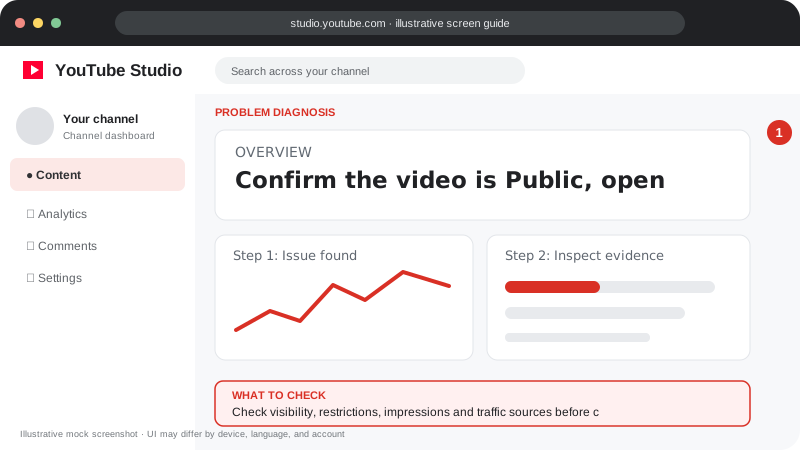
Problem screen
Videos getting no views
Check visibility, restrictions, impressions and traffic sources before changing the video.
A calm, practical checklist to find the cause before changing everything or re-uploading.
One video with few views does not automatically mean your channel is restricted. First check whether people can access the video, then use analytics to understand whether the issue is reach, clicks, or viewer retention.
Follow the screen-style walkthrough below, then use the detailed checklist on this page. These are original illustrative mock screenshots—not copied official YouTube screenshots. Exact labels can vary by app version, device, language, and account.
Check visibility, restrictions, impressions and traffic sources before changing the video.
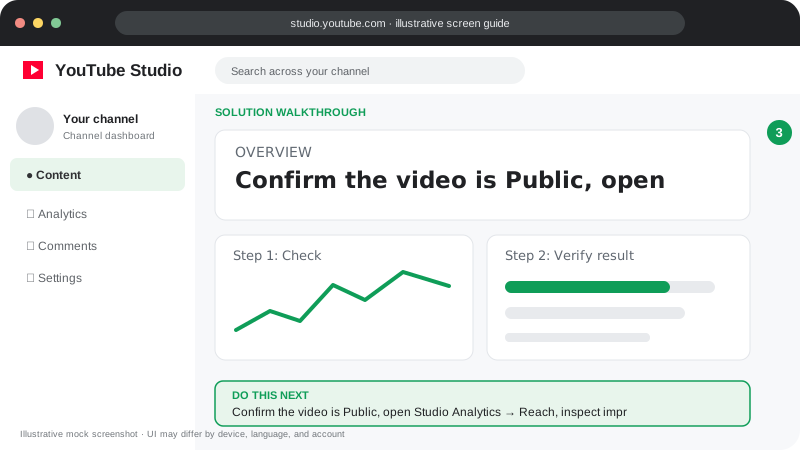
Confirm the video is Public, open Studio Analytics → Reach, inspect impressions and traffic sources, then make one evidence-led change.
Visuals are instructional mockups for learning, not live screenshots from your YouTube account. Confirm important settings in your own YouTube Studio.
Open YouTube Studio → Content. Check Visibility is set to Public if you expect everyone to find it. Private, unlisted, scheduled, or still-processing videos may not appear like a public upload. Open the video link in a private/incognito browser window to test access.
In Studio’s Content list, review the Restrictions column and any copyright or policy notices. Confirm HD processing or checks are not still pending. Follow the instructions shown in Studio rather than deleting and uploading repeatedly.
Open Analytics for the video. If impressions are very low, YouTube may not yet have shown the video widely or the topic may have limited demand. If impressions exist but views are low, evaluate the title and thumbnail together. Remember that not every view source counts as a registered impression.
Make the title specific and accurate, use a clear thumbnail that matches the actual video, and deliver the promised value quickly. Avoid misleading clickbait. For Shorts, make the subject clear in the first seconds and remove slow setup.
In Analytics, review audience retention and traffic sources when enough data is available. If viewers leave early, improve pacing, clarity, audio, and the match between title and content. Compare several videos over time instead of overreacting to a few hours of data.
← Back to all YouTube problem guides
Understand YouTube Analytics ↗Practical guidance for creators in different countries, languages, and device environments. Menu labels can vary by YouTube Studio version; follow the notices shown on your own account.
Open the exact URL in a signed-out or private browser window and check the video is Public, not Private, Unlisted, Scheduled, age-restricted, or still processing. A public video may still take time to be discovered.
In YouTube Studio → Content → select video → Analytics, inspect impressions and traffic sources. Very few impressions points to reach, demand, eligibility, or freshness; impressions without views points more toward title-thumbnail fit.
Review the Restrictions column, copyright checks, age restrictions, and any Studio notice. Resolve the stated issue rather than repeatedly deleting and re-uploading.
Compare topic, language, title, thumbnail, opening, and viewer retention with the audience you intend to reach. Make one measured change at a time.
No. One low-view upload does not establish a hidden restriction. Check visibility, restrictions, and Analytics first.
Usually not. First identify a real upload error or policy issue; repeated re-uploads can make diagnosis harder.
Official reference: Read YouTube Help for this topic ↗. Official rules and interface details may change; use the current page as the final authority.