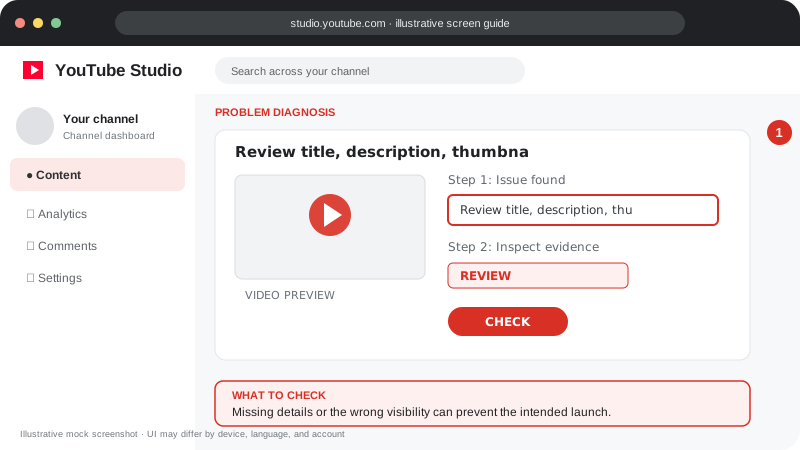
Problem screen
Publish a video safely
Missing details or the wrong visibility can prevent the intended launch.
A safe publishing checklist for title, description, thumbnail and visibility.
Disclaimer: Independent educational guide, not an official YouTube or Google website.
Use the current official interface and help resources if labels change.
Follow the screen-style walkthrough below, then use the detailed checklist on this page. These are original illustrative mock screenshots—not copied official YouTube screenshots. Exact labels can vary by app version, device, language, and account.
Missing details or the wrong visibility can prevent the intended launch.
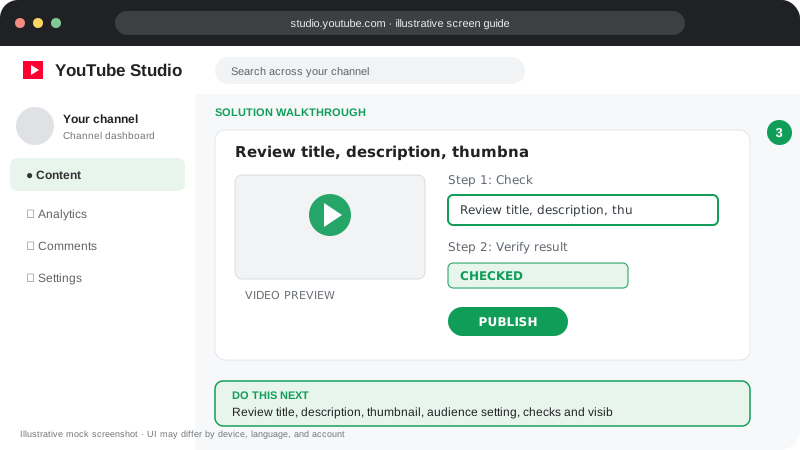
Review title, description, thumbnail, audience setting, checks and visibility before publishing; preview the public result afterward.
Visuals are instructional mockups for learning, not live screenshots from your YouTube account. Confirm important settings in your own YouTube Studio.
Use these official YouTube resources to confirm current rules and interface details:
Practical guidance for creators in different countries, languages, and device environments. Menu labels can vary by YouTube Studio version; follow the notices shown on your own account.
Use a supported format, stable connection, and enough storage. If upload fails, note the exact error and try a supported browser or updated Studio app.
Review title, description, thumbnail, audience setting, language, captions, and visibility. Declare paid promotion and altered/synthetic content where YouTube requires it.
Wait for processing and copyright checks to complete when relevant. Read the exact Studio notice and follow its appeal or correction route.
Open the final public URL from another browser session, confirm audio/video playback, captions, thumbnail, and end screens, then monitor Analytics.
Do not assume it is finished until Studio confirms the upload and processing status. For large files, maintain a stable connection.
Higher-resolution processing can take longer than initial processing. Check status before deleting or re-uploading.
Official reference: Read YouTube Help for this topic ↗. Official rules and interface details may change; use the current page as the final authority.