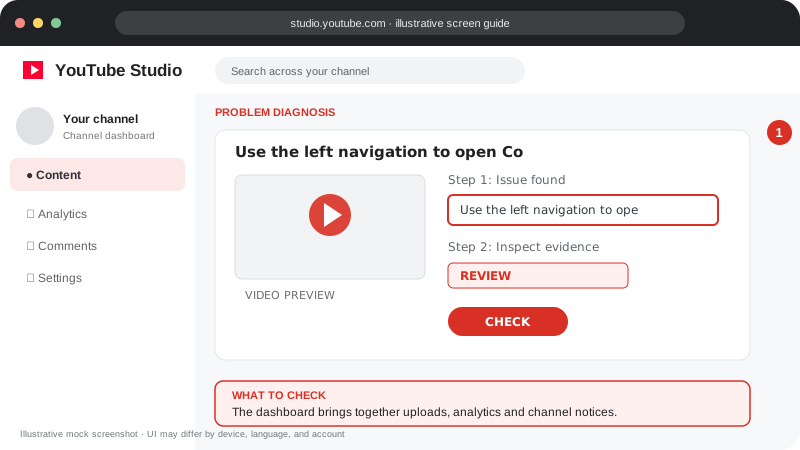
Problem screen
Studio dashboard feels confusing
The dashboard brings together uploads, analytics and channel notices.
Use the dashboard to review recent performance, notices and next actions.
Disclaimer: Independent educational guide, not an official YouTube or Google website.
Use the current official interface and help resources if labels change.
Follow the screen-style walkthrough below, then use the detailed checklist on this page. These are original illustrative mock screenshots—not copied official YouTube screenshots. Exact labels can vary by app version, device, language, and account.
The dashboard brings together uploads, analytics and channel notices.
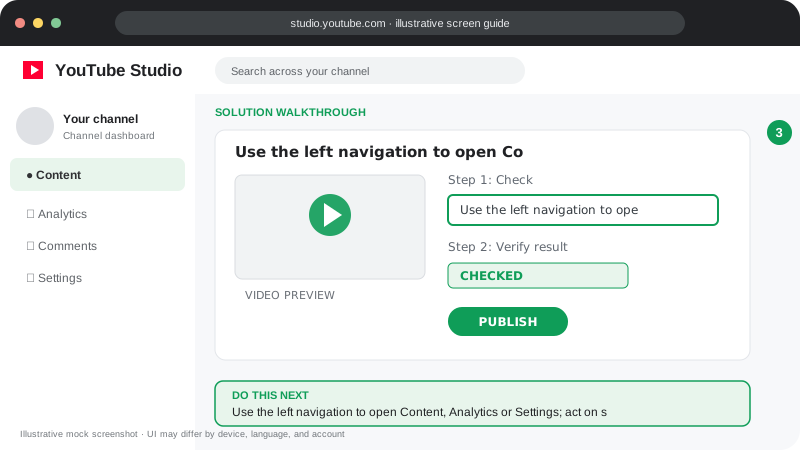
Use the left navigation to open Content, Analytics or Settings; act on specific notices rather than guessing from overview cards.
Visuals are instructional mockups for learning, not live screenshots from your YouTube account. Confirm important settings in your own YouTube Studio.
Use these official YouTube resources to confirm current rules and interface details:
Practical guidance for creators in different countries, languages, and device environments. Menu labels can vary by YouTube Studio version; follow the notices shown on your own account.
Review dashboard notices, recent uploads, comments, copyright/policy alerts, and channel performance summaries. Menu names can vary by app version and rollout.
Go to Content for upload settings and restrictions, Analytics for performance, and Earn for monetization eligibility and status.
Use only authorized channel permissions. If a feature is missing, confirm you are in the correct channel and account and check whether the feature is available for that channel or region.
Enable 2-Step Verification, keep recovery information current, and do not share passwords or verification codes with anyone claiming to be support.
YouTube gradually rolls out interface changes, and mobile and desktop layouts differ. Use the current official Help instructions for your device.
Some metrics and reports can take time to update; use the displayed date range and metric definitions.
Official reference: Read YouTube Help for this topic ↗. Official rules and interface details may change; use the current page as the final authority.