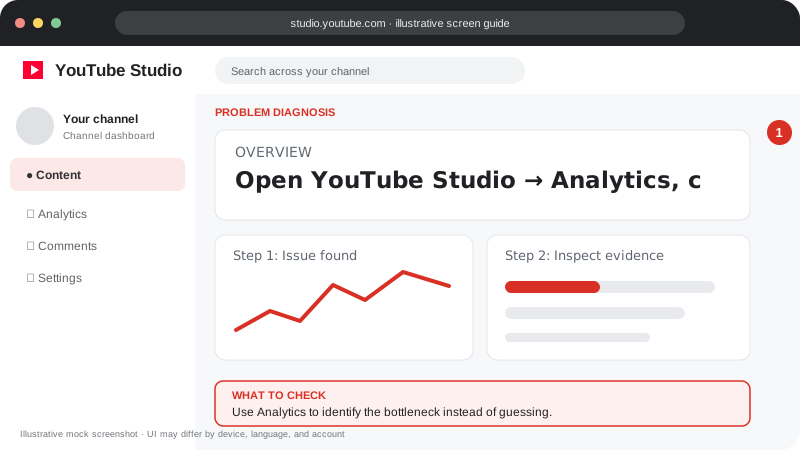
Problem screen
Find what is working
Use Analytics to identify the bottleneck instead of guessing.
Read views, impressions, click-through rate, watch time, retention and traffic sources in context.
Disclaimer: Independent educational guide, not an official YouTube or Google website.
Use the current official interface and help resources if labels change.
Follow the screen-style walkthrough below, then use the detailed checklist on this page. These are original illustrative mock screenshots—not copied official YouTube screenshots. Exact labels can vary by app version, device, language, and account.
Use Analytics to identify the bottleneck instead of guessing.
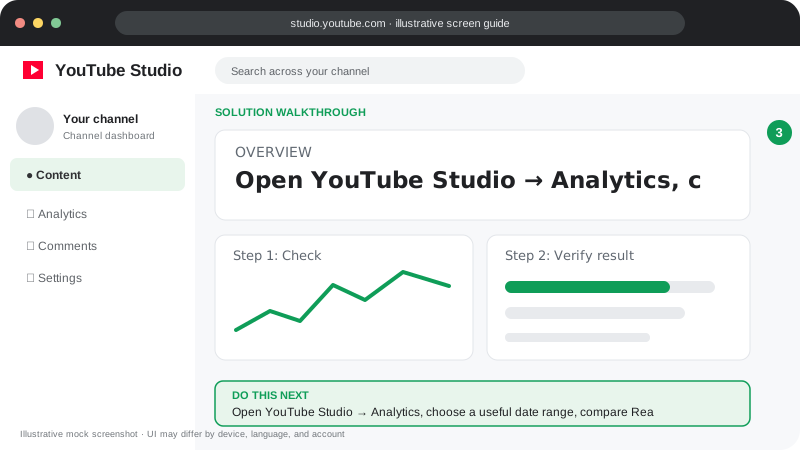
Open YouTube Studio → Analytics, choose a useful date range, compare Reach and Engagement, then change one thing at a time.
Visuals are instructional mockups for learning, not live screenshots from your YouTube account. Confirm important settings in your own YouTube Studio.
Use these official YouTube resources to confirm current rules and interface details:
Practical guidance for creators in different countries, languages, and device environments. Menu labels can vary by YouTube Studio version; follow the notices shown on your own account.
For discovery, inspect impressions, CTR, and traffic sources. For viewing quality, inspect watch time and retention. For loyalty, look at returning viewers and subscribers gained.
Compare similar formats, lengths, topics, and time windows. Avoid comparing a fresh upload with a mature video without accounting for age.
Some geography, demographic, and traffic-source data may be limited or unavailable for small samples. Realtime figures can differ from finalized reports.
Where available, compare videos and date ranges, break down traffic sources, and export reports for a documented experiment.
Metrics may update as views are verified and reports process. Check the metric definition and date range before assuming an error.
No. Interpret reach, clicks, viewing behavior, and audience satisfaction together.
Official reference: Read YouTube Help for this topic ↗. Official rules and interface details may change; use the current page as the final authority.