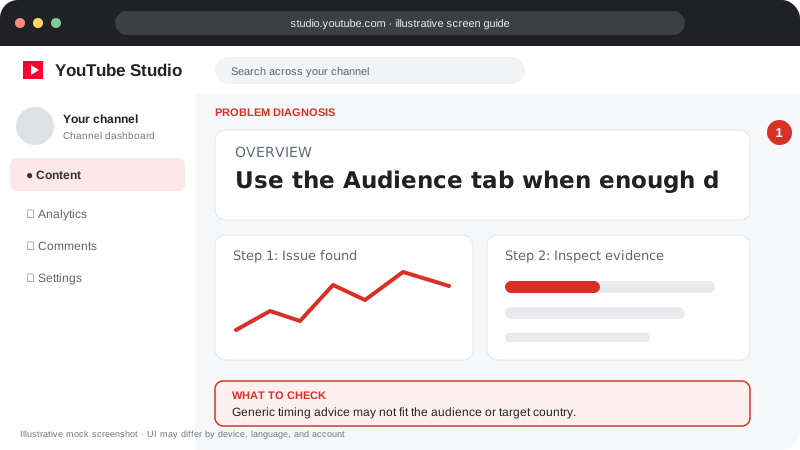
Problem screen
Upload timing is uncertain
Generic timing advice may not fit the audience or target country.
Use your own audience activity data and a sustainable schedule instead of relying on a universal “best time.”
Use your own audience activity data and a sustainable schedule instead of relying on a universal “best time.”
Follow the screen-style walkthrough below, then use the detailed checklist on this page. These are original illustrative mock screenshots—not copied official YouTube screenshots. Exact labels can vary by app version, device, language, and account.
Generic timing advice may not fit the audience or target country.
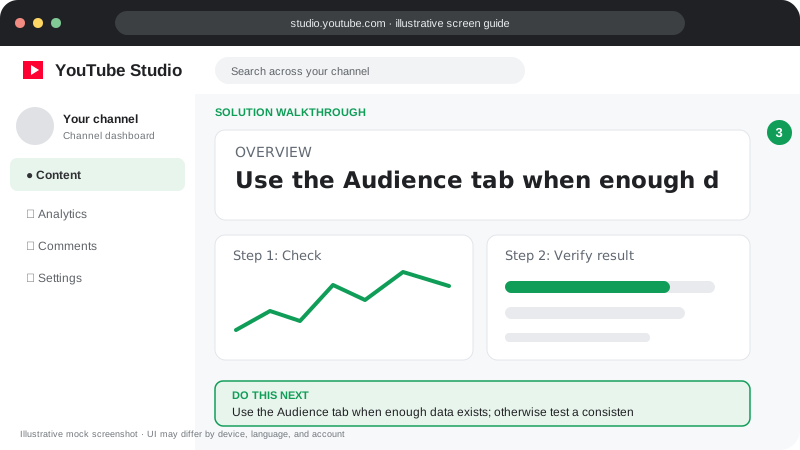
Use the Audience tab when enough data exists; otherwise test a consistent schedule and compare several similar uploads.
Visuals are instructional mockups for learning, not live screenshots from your YouTube account. Confirm important settings in your own YouTube Studio.
Open YouTube Studio Analytics and look for audience activity information when available.
Choose a few consistent posting windows that suit your audience’s time zone.
Compare performance across multiple uploads and similar topics.
Prioritize the quality and clarity of the Short over perfect timing.
Adjust gradually based on evidence, not a single upload.
Start with a practical consistent schedule, then compare results as enough channel data accumulates.
Practical guidance for creators in different countries, languages, and device environments. Menu labels can vary by YouTube Studio version; follow the notices shown on your own account.
In YouTube Studio Analytics, look for “When your viewers are on YouTube” if available and use the report as a planning clue, not a guarantee.
For a worldwide audience, your viewers may be spread across regions. Decide whether to prioritize the largest audience segment or test different windows for different series.
Try a small number of publish windows across similar content and compare results over consistent periods. Avoid changing topic, length, and timing all at once.
A useful, well-edited Short is more important than chasing a supposedly perfect minute. Schedule around a sustainable workflow.
No. Audience location, routine, topic, and competition differ. Use your own data where available.
Scheduling itself is not a guaranteed ranking penalty. Focus on the content and audience response.
Official reference: Read YouTube Help for this topic ↗. Official rules and interface details may change; use the current page as the final authority.